Quasar Customization for Reactive, Configurable WebRTC Interfaces

When we started building the interface of a multi-tenant video-meeting application, Quasar wasn't the obvious choice. It's better known for admin panels and dashboards than for real-time media. Looking back, it was one of the decisions that saved us the most time.
A meeting screen is a dashboard that never stops moving. People join, cameras switch off, someone presents, a moderator mutes the room, and every one of those WebRTC events must show up immediately. Every customer organization also wanted its own rules. Here's what we learned about customizing Quasar to handle both, and where it made the job faster than assembling the pieces ourselves.
Why Quasar fits a video-call interface
A meeting interface needs more than video tiles: an adaptive layout, drawers for chat and participants, menus that differ for moderators and guests, device dialogs, notifications tied to the call's state, and per-customer theming. With plain Vue, that means a UI kit, a toast library, a breakpoint helper and a storage wrapper, each configured separately.
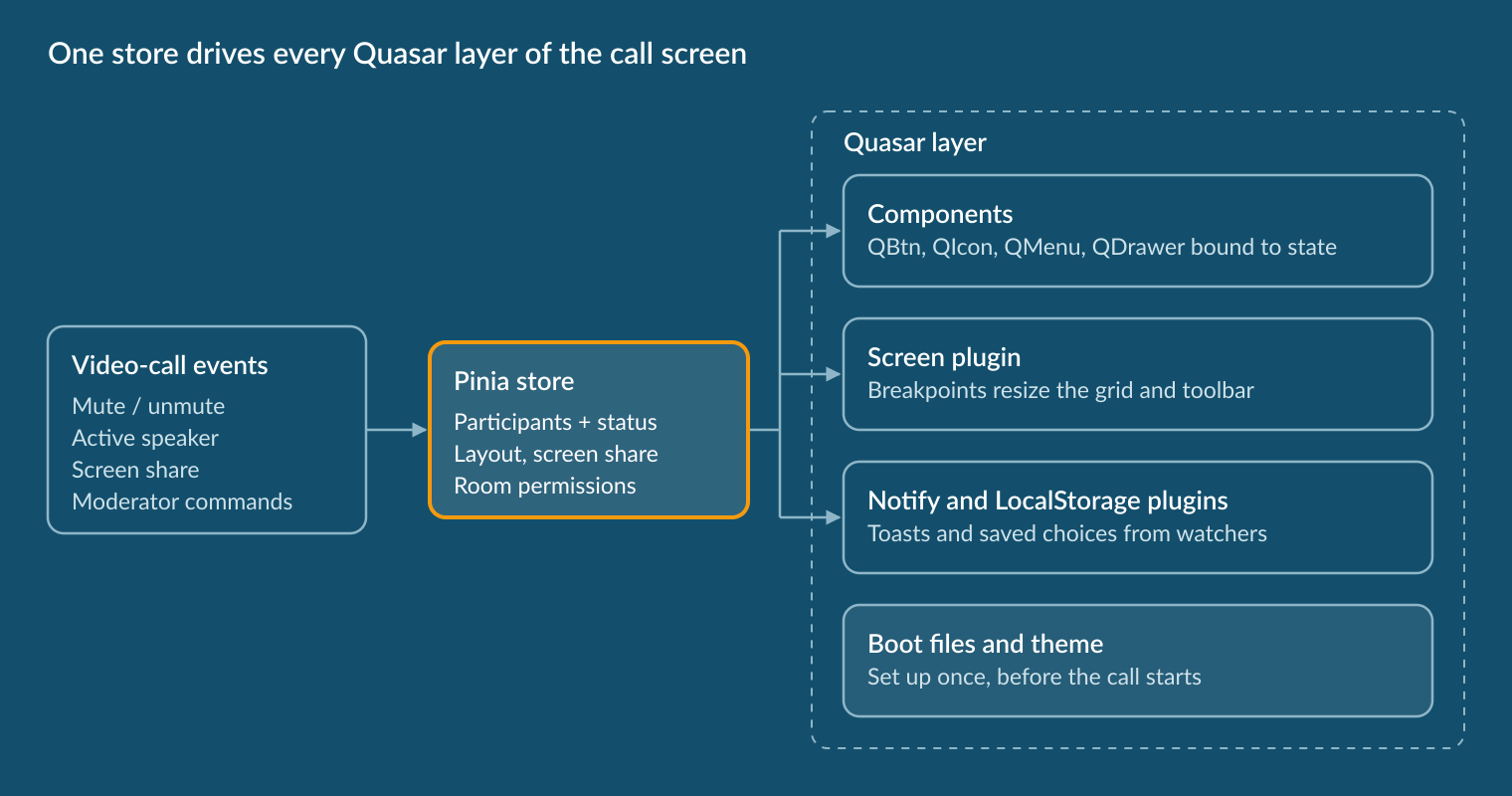
Quasar ships all of these as one coherent toolkit, and, crucially for real-time work, every piece is reactive and can be driven from state. That let us follow one rule: WebRTC events only update a central store, and every Quasar layer reacts to that store, never to the media SDK.
Layout views that reconfigure themselves
The application offers three views: a presenter view with a large stage and a carousel of thumbnails, a speaker-only view, and an equal grid. The current view is a single value in the store, and Quasar does the rest.
- Picking a view is a nested option in a QMenu. QMenu, QList and QItem already handle positioning, nesting and keyboard access.
- Remembering it is one call to Quasar's LocalStorage plugin, so the next meeting opens in the view you left. The same plugin keeps your chosen devices and microphone state.
- Adapting to the screen is where Quasar paid off most. The grid picks its columns from the participant count and the Screen plugin's current breakpoint. Because the plugin is reactive, rotating a phone or resizing a window rearranges the grid instantly, with no resize listeners to write or clean up.
The presenter view reacts to active-speaker events: the stage shows a screen share first, then whoever is talking. The carousel above it holds up to six thumbnails, pinned people first. One honest lesson: QCarousel pages through slides one at a time, while a meeting needs every thumbnail visible at once, so a simple scrolling row was the better fit. Match the component to the interaction, not to its name.
Screen share: one event, the whole screen reshapes
Screen sharing is the best test of reactivity, because one WebRTC event changes almost everything. When a share starts, the store records it and the Quasar layer follows:
- The layout switches itself. A shared slide deck is useless as one small tile in a grid, so the view moves to the presenter layout automatically. When the last share ends, it restores whatever the user had before.
- The toolbar updates. The Share QBtn changes icon, color and QTooltip text, and a presenter icon appears next to the right person in the participant list inside the QDrawer.
- New controls appear where they're needed. A small QBtn on the shared screen detaches it into its own browser window, useful with a second monitor. While it's detached, every layout behaves as if nobody is sharing.
- Conflicts resolve themselves. If someone is already sharing, the application asks them to stop over the call's data channel and starts the new share when theirs ends. For the user, it's one click.
None of this needed imperative DOM work. Each Quasar component already exposes the props we needed (icon, color, label, disable, tooltip content), so reacting to a screen share was a matter of binding those props to state.
Mute state: one button, many sources of truth
A microphone button looks trivial until you count who can change it: the user, a moderator, and the meeting's "start muted" policy. We store the user's choice and the room's constraints separately, and every Quasar component shows the combined result.
The toolbar QBtn and the QIcons on each video tile read that same state, so they can never disagree. Tile icons can be set to appear always, only when active or only when muted, and for moderators the same icons become clickable controls.
Notifications that follow the call
A video call produces a steady stream of small news: a recording has started, someone is waiting in the lobby, the meeting is close to its time limit, a moderator has muted you. Quasar's Notify plugin turned out to be one of the most useful parts of the toolkit for this.
How it works. Notify is switched on with one line in the Quasar configuration. From then on, a single call raises a notification from anywhere: a component, a store or a plain function. There's no toast component to place in the layout and no container to manage. Each call takes a few options: the message, a theme color, an icon, the position, how long it stays (zero keeps it until dismissed) and optional action buttons such as Dismiss. It returns a handle that closes that exact notification.
Why it fits real-time work. Call events arrive outside any component. Because Notify is called from plain code and returns a handle, the same watcher that opens a message can close it the moment the situation changes. Colors come from the theme and icons from our custom icon map, so every message is on brand with no extra styling, and there's no separate toast library to add and wire up.
How we use it. One small helper wraps Notify with three presets: info, warning and error. It translates the message, applies the brand colors, shows it at the top for five seconds or keeps it with a Dismiss button, and clears open notifications when the screen that raised them closes.
Customize once, configure everywhere
The biggest time saver was that Quasar lets you customize it in a few central places, while the rest of the code keeps using standard components. That kept the product on brand without forking anything.
- Theme variables. Brand colors, corner radii and shadows live in Quasar's theme variables. Every QBtn, QBadge and QBanner picks them up through the usual color names, so the toolbar, dialogs and notifications all match with zero per-component styling.
- A custom icon map. A boot file registers about seventy custom icons through Quasar's icon-mapping function. From then on, a short name works anywhere Quasar accepts an icon, so switching from "microphone on" to "microphone off" is just a different name in a binding.
- Boot files for runtime configuration. Translations, the environment configuration, the HTTP client and the icon set all load in boot files before the first screen renders. The environment file is generated when the container starts, so a single build runs in development, staging and every customer environment.
- Thin wrappers, never forks. We only wrapped what we style the same way everywhere: the main button, a compact dropdown and one Notify helper with our colors and translated text. Everything else is plain Quasar.
- Built-in primitives for the call screen. A QLayout with a QDrawer for chat or participants, QDialogs for settings, a QBadge counting the waiting room, and a toolbar the Screen plugin collapses into a dropdown on small screens.
The same approach made the product configurable per organization. Each meeting's settings (waiting room, who may share, whether guests join muted, chat, dial-in, branding, encryption) combine with the user's role into one set of permissions. Quasar components bind to it directly: disabled buttons, moderator-only QMenu entries, a QBanner when dial-in is down. A policy changed in the admin console shows up in the next meeting, with no front-end release.
The takeaway
What made Quasar a good fit for a video-call application wasn't any single component. It was that every part of it (components, the Screen plugin, Notify, LocalStorage, theming and boot files) can be driven from state and customized in one place. Put the call's events into a store, bind Quasar to that store, and screen shares, mute changes and layout switches become configuration rather than code.